Schedule and organize
inside WhatsApp Web

BetterZap puts scheduling, the client’s card, funnel stages and quick replies on the WhatsApp Web screen itself. With your own number, without switching tabs.

No card and nothing to cancel. 7 days with no daily limit.

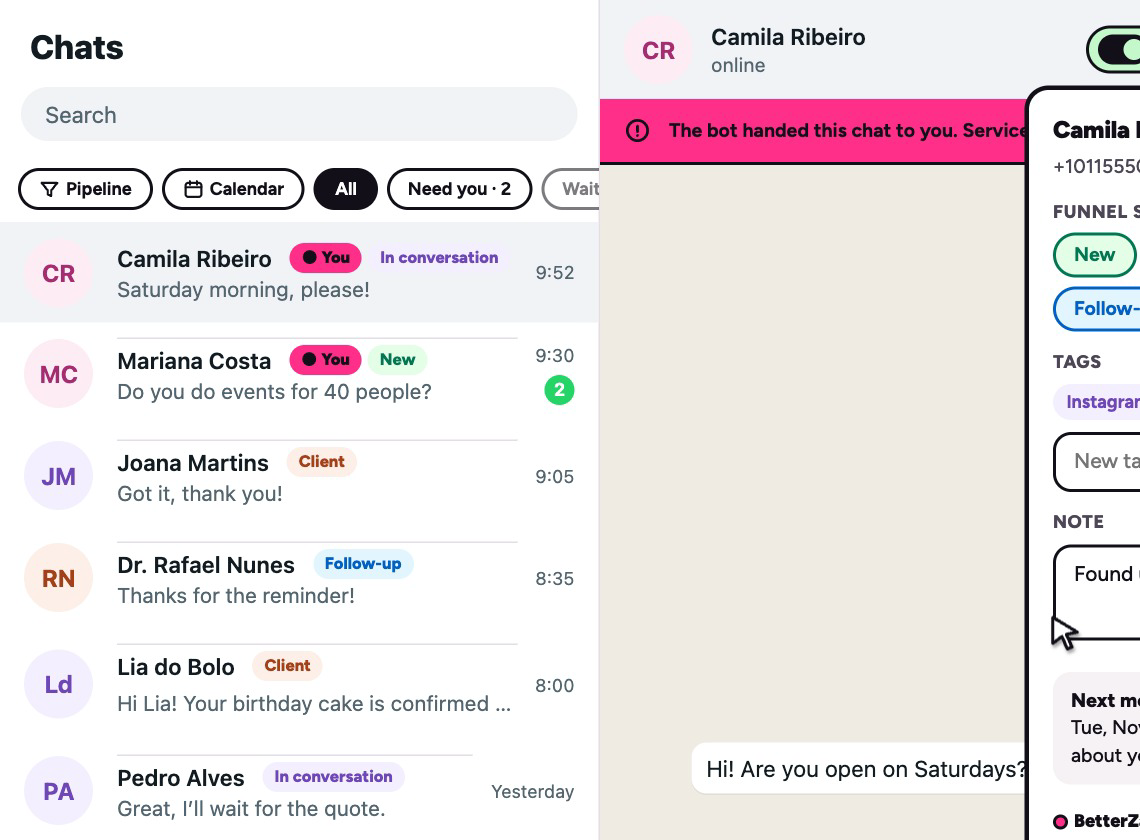
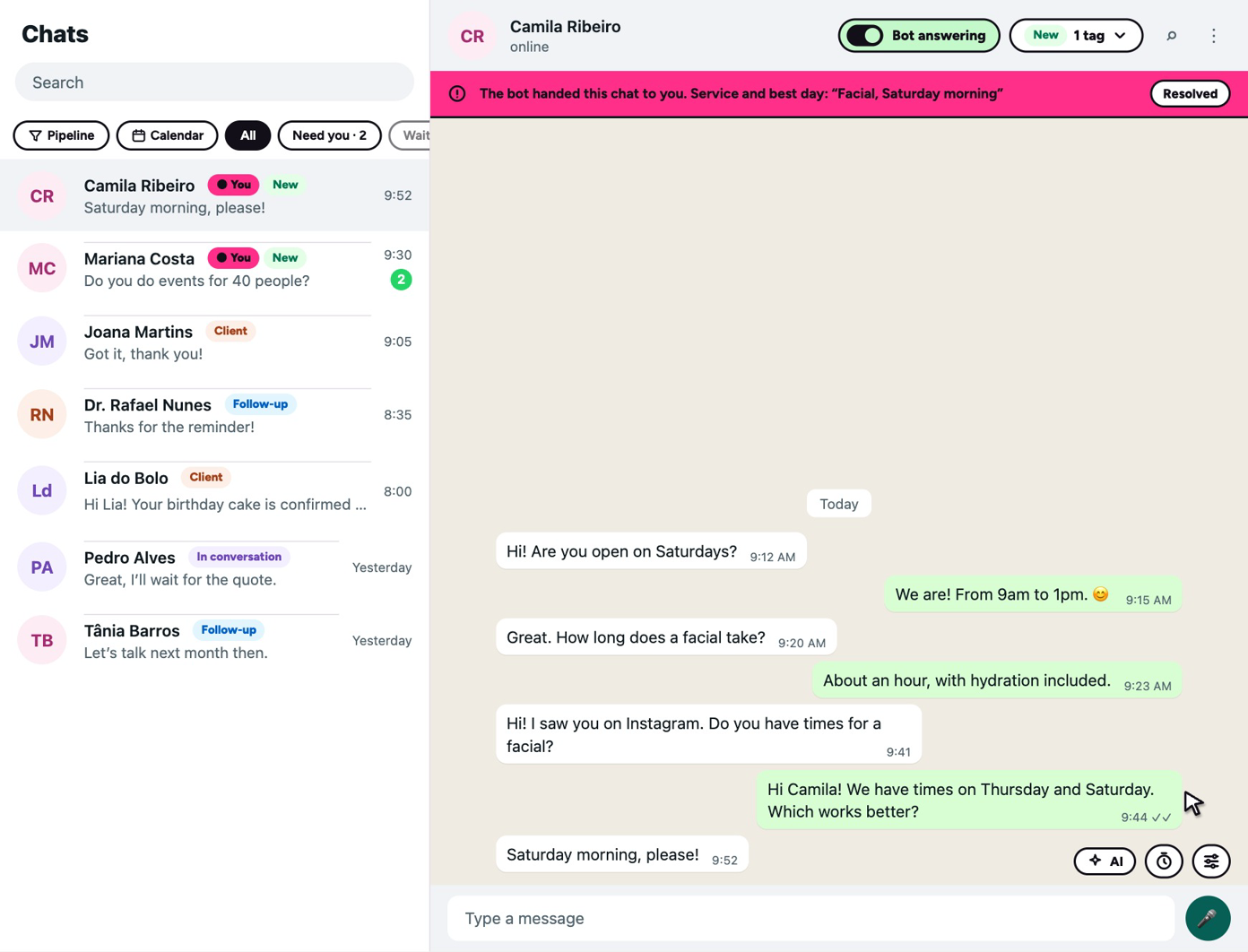
WhatsApp Web with BetterZap’s controls: funnel stages on the chat list, the bot’s switch and the client’s stage in the chat’s header

What shows up in your WhatsApp Web

Six controls that show up on the screen by themselves, with your usual number. Nothing changes in your chats.

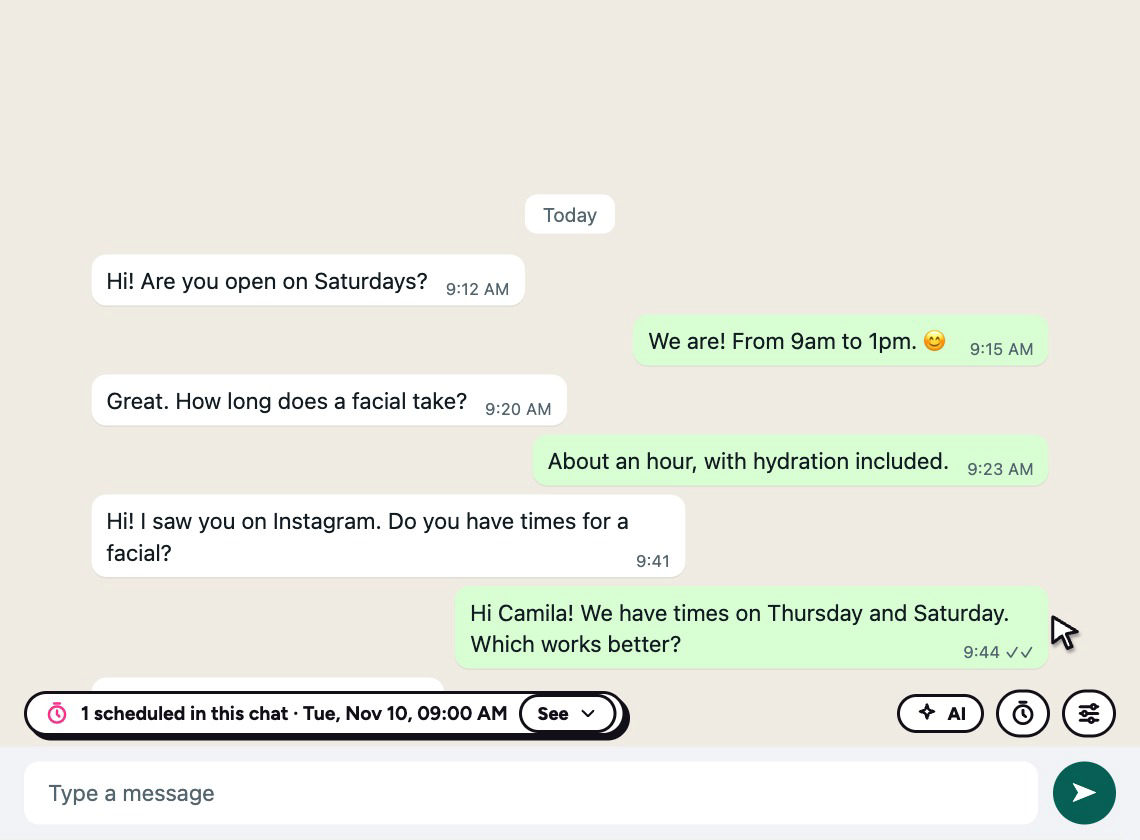
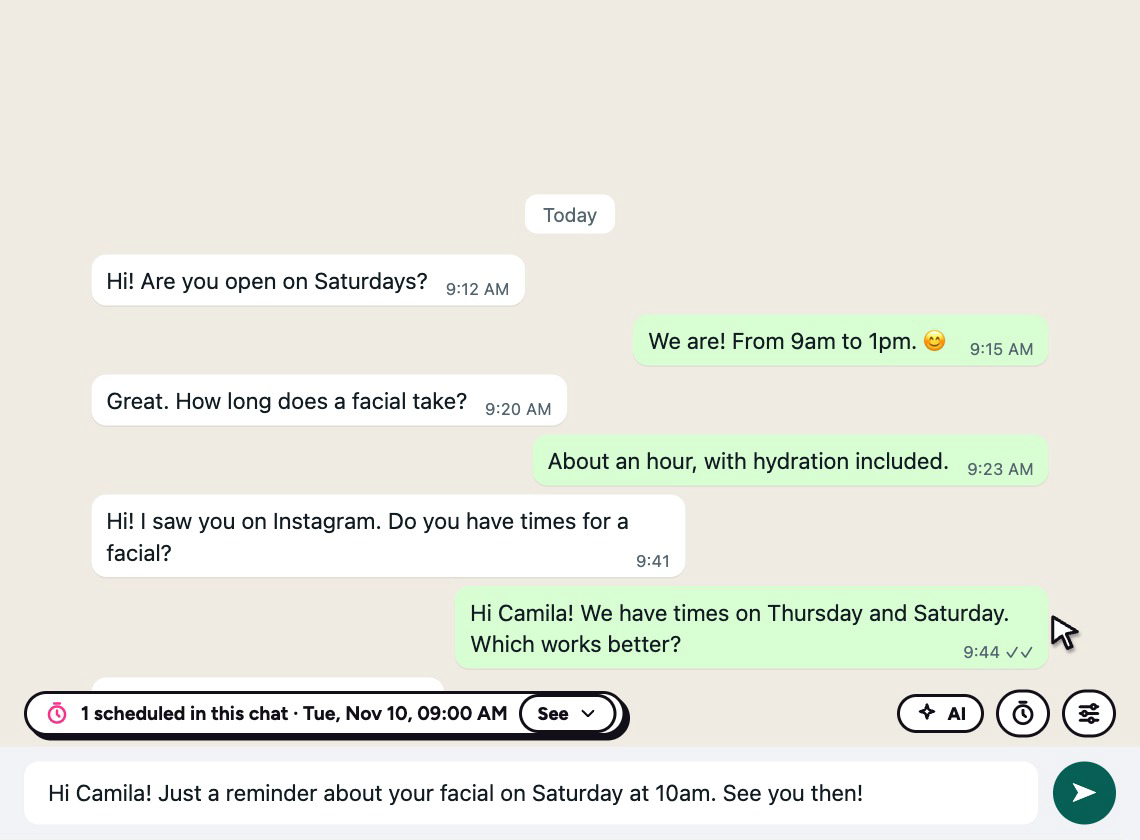
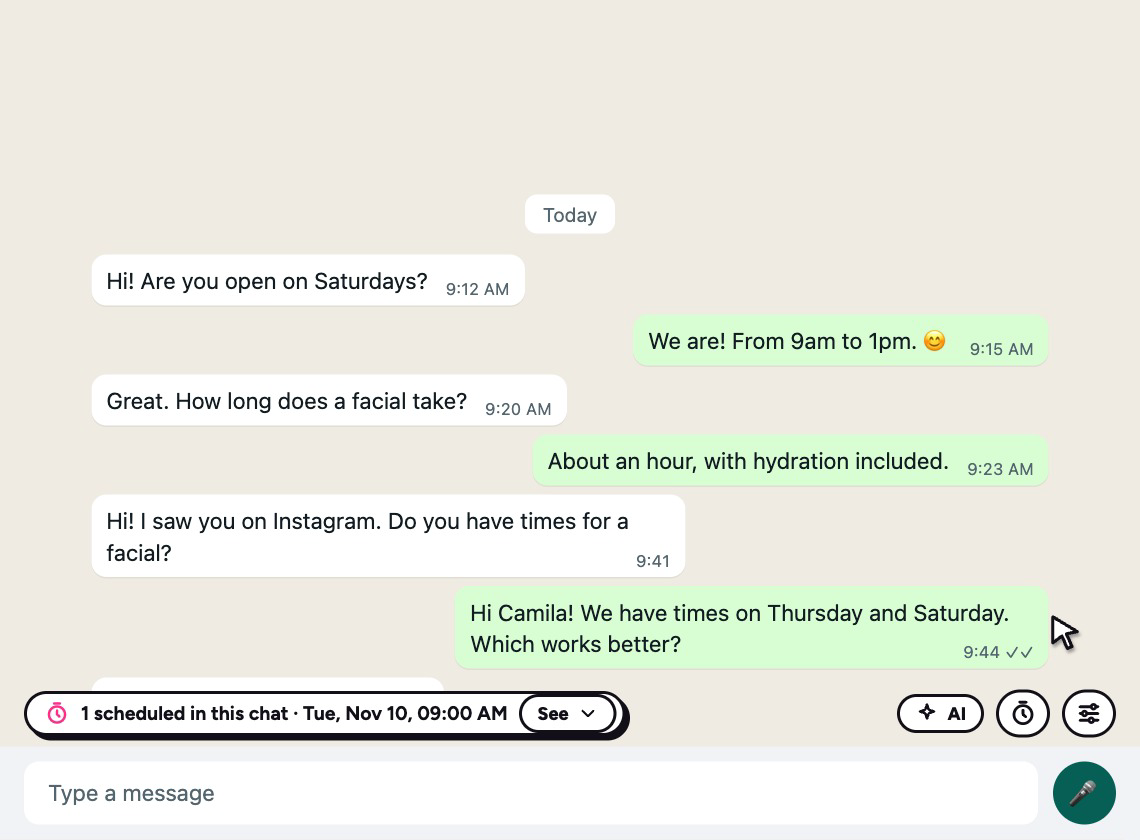
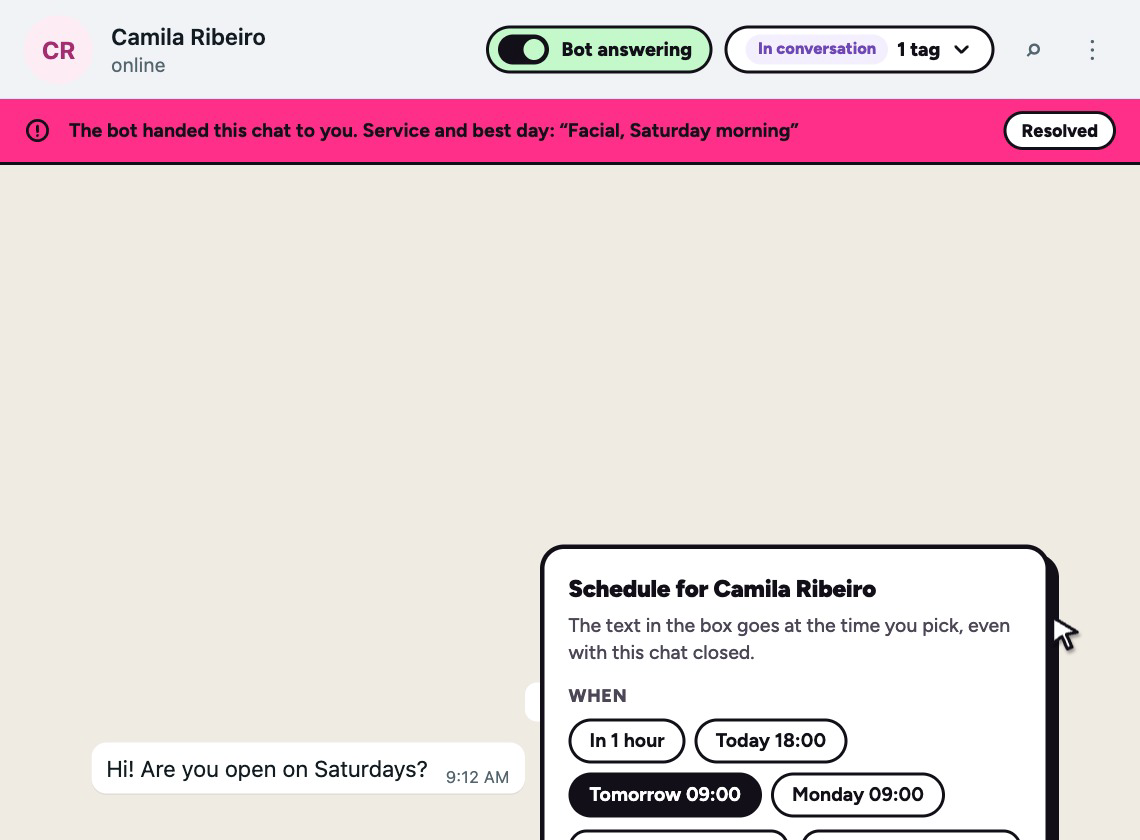
The chat on WhatsApp Web with BetterZap’s clock open, offering times to schedule the words in the box

Available on: Every plan

Schedule without leaving the chat

Write in WhatsApp’s box, click the clock and pick: in 1 hour, tomorrow morning or any date you want. What’s already scheduled for that person shows right above the box, where you can edit it, send it now or cancel it.

Tick one option and a reminder is canceled if the chat moves before it goes.
The contact’s card open at the top of a chat, with funnel stage, tags, a note and the next message

Available on: Every plan

The client’s card on top of the chat

Funnel stage, tags, notes and the next scheduled message sit at the top of the chat. Changed stage? One click. Someone who isn’t in the funnel yet gets in the same way.

WhatsApp Web’s chat list with a funnel stage beside each name and filter chips above it

Available on: Every plan

Each client’s stage on the chat list

Every chat shows its stage beside the name, and a filter above the list highlights only the ones you want. One look tells you who’s waiting on a quote and who already closed.

A menu of saved templates open above WhatsApp’s box after typing a slash

Available on: Every plan

Ready-made replies by typing /

Type / in the box and your templates appear at once. Pick one and the words go in with the client’s name filled in. You check it and send it.

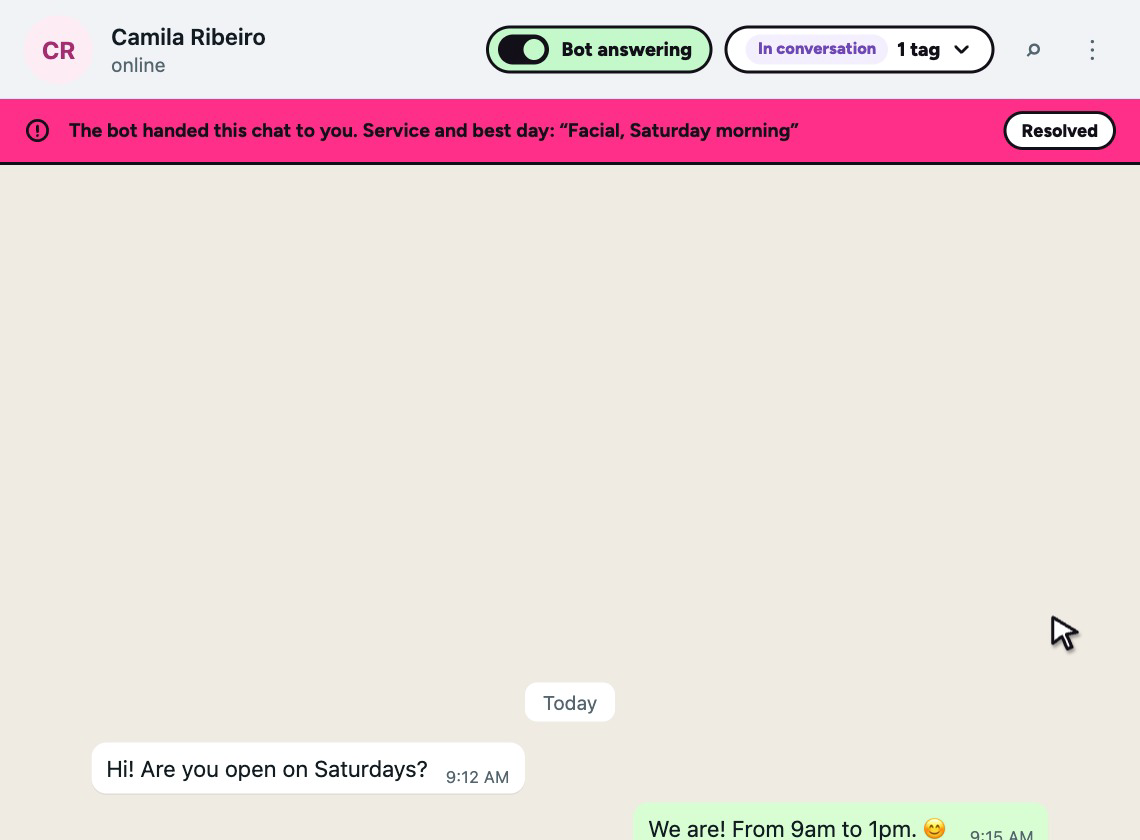
The bot’s switch at the top of a chat, with a pink strip showing what the client answered before the handover

Available on: Paid plans and free trial

Pause the bot in just one chat

A switch at the top turns auto-reply on or off for that client alone, and everyone else keeps being answered. When the bot hands someone over to you, a strip shows what they answered and the chat gets a mark on the list.

The AI popover above WhatsApp’s box, with a suggested message ready to send

Available on: Premium

AI writes with you, in the message box

Ask it to improve, shorten, soften or fix what you wrote. Or just say what you want to tell them. You read the suggestion and send it with one click.

Questions

Can I schedule a message right in WhatsApp Web?

Yes. With BetterZap installed, a clock appears above the message box. Write the message, click it and pick when it goes.

Do I need to install anything?

Only the BetterZap extension for Chrome. Once it’s installed, the controls appear by themselves in WhatsApp Web on your computer. Your number and your chats stay the same.

Does it work in WhatsApp on my phone?

These controls appear in WhatsApp Web, on a computer. On your phone, you follow and schedule your messages from BetterZap’s panel.

Does the person receiving notice anything?

The controls only appear on your screen, and the message arrives like any other on WhatsApp. On the free plan, each scheduled message ends with a BetterZap link, which paid plans and the free trial remove.

Which of these need a paid plan?

Scheduling, the client’s card, stages and quick replies are on every plan, including the free one. The bot comes with paid plans and the free trial, and writing with AI is part of Premium. The prices are on the pricing page.

See it in your WhatsApp Web

Install it, open a chat and schedule your first message.

See everything else BetterZap does